> ## Documentation Index
> Fetch the complete documentation index at: https://fillout-005a867b-dependabot-npm-and-yarn-ip-address-10-4-0.mintlify.site/llms.txt
> Use this file to discover all available pages before exploring further.

# Filter and Branch

> Set an action to occur only when it meets a specific condition. Add branches to trigger different actions based on specific responses in your workflow.

export const SupportBanner = () => {
  const titleId = React.useId();
  return <div className="support-banner" role="region" aria-labelledby={titleId}>
      <span className="support-banner__ring support-banner__ring--outer" aria-hidden="true" />
      <span className="support-banner__ring support-banner__ring--middle" aria-hidden="true" />
      <span className="support-banner__ring support-banner__ring--inner" aria-hidden="true" />
      <span className="support-banner__ring support-banner__ring--center" aria-hidden="true" />

      <div className="support-banner__content">
        <div className="support-banner__title" id={titleId} role="heading" aria-level="2">Still have questions?</div>

        <div className="support-banner__copy">
          <span className="support-banner__line">Our team is happy to help. Start a live chat using the</span>
          <span className="support-banner__line">
            chat bubble <span className="support-banner__chat-icon" aria-hidden="true" /> in the bottom right, or email us at
          </span>
          <span className="support-banner__line">
            <a href="mailto:support@fillout.com">support{'@'}fillout.com</a>
          </span>
        </div>

        <a className="support-banner__cta" href="mailto:support@fillout.com">Contact us</a>
      </div>
    </div>;
};

## How to filter an action

<Steps>
  <Step title="Create a workflow">
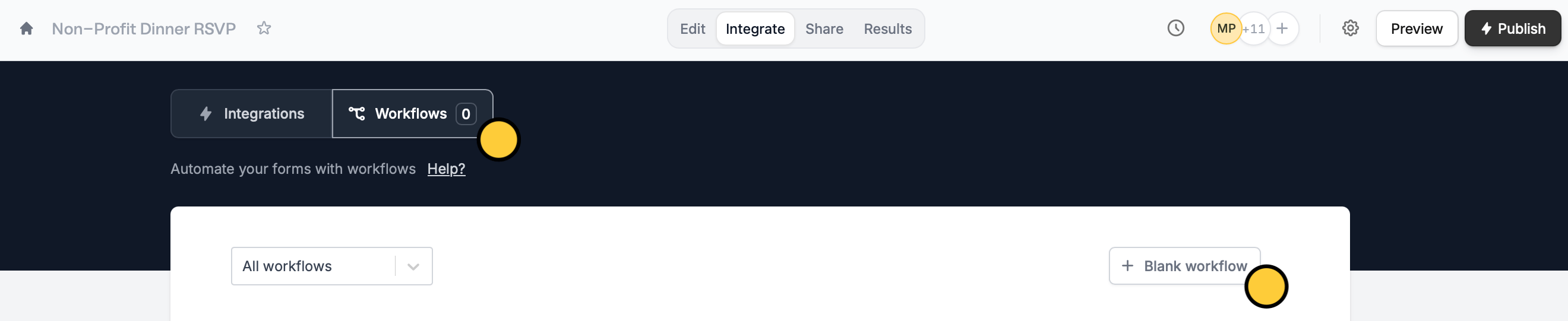
    Click `Integrate` on the top menu of your form, followed by `Workflows`. Then, start with a `+ Blank workflow`.
    <img src="https://mintcdn.com/fillout-005a867b-dependabot-npm-and-yarn-ip-address-10-4-0/w346fh4jx5PwIzfW/images/Screenshot2025-11-03at5.53.15PM.png?fit=max&auto=format&n=w346fh4jx5PwIzfW&q=85&s=a3b5635c7502dc47aded5ca721862976" alt="Screenshot 2025-11-03 at 5.53.15 PM.png" width="2640" height="541" data-path="images/Screenshot2025-11-03at5.53.15PM.png" />
  </Step>

  <Step title="Choose filter as your action">
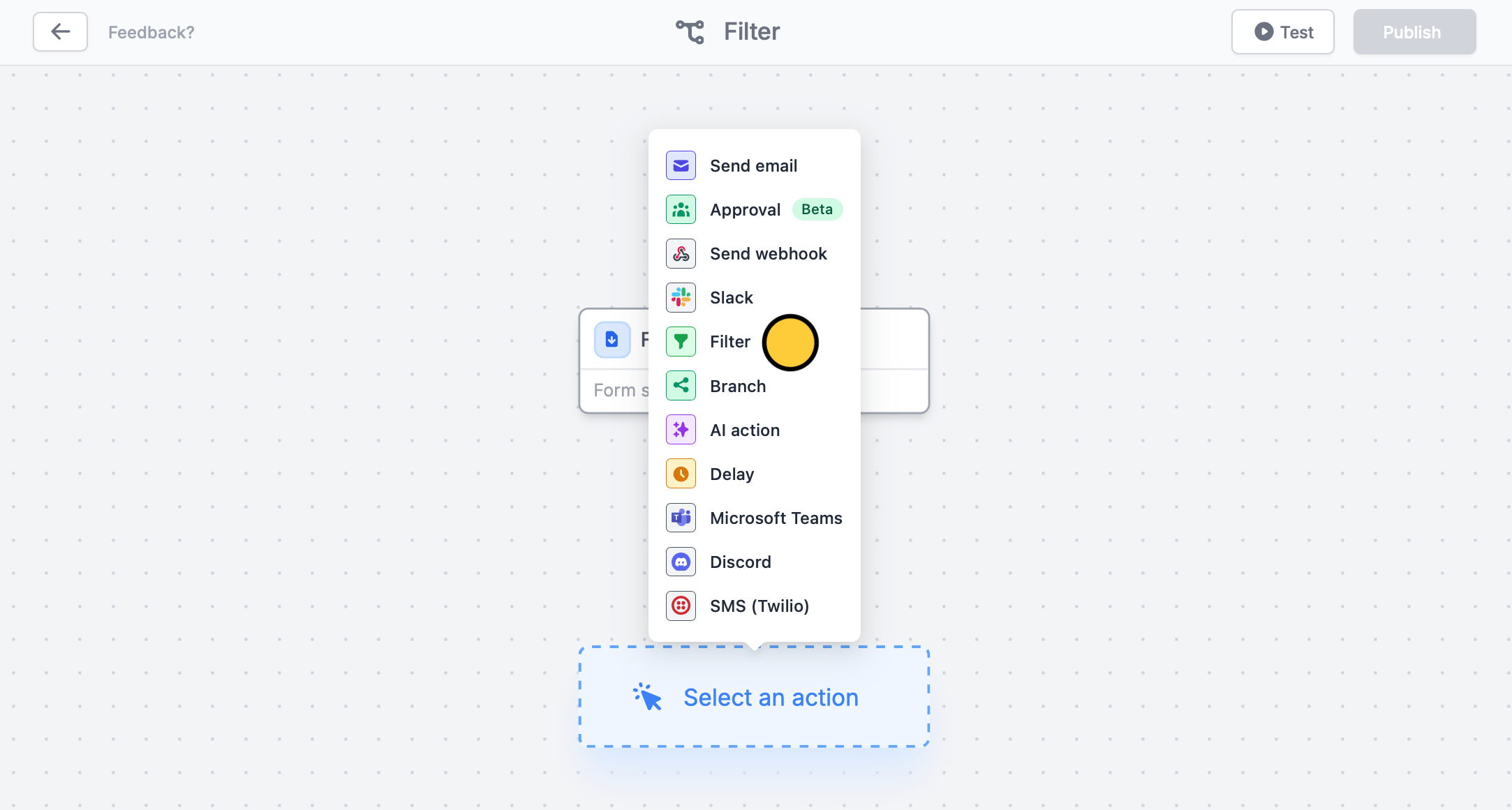
    First, choose a **trigger**. Then, select `Filter` as the first **action**.
    <img src="https://mintcdn.com/fillout-005a867b-dependabot-npm-and-yarn-ip-address-10-4-0/w346fh4jx5PwIzfW/images/Screenshot2025-11-03at5.30.51PM.png?fit=max&auto=format&n=w346fh4jx5PwIzfW&q=85&s=4ec3e368488241cc6ffc2e95030ea549" alt="Screenshot 2025-11-03 at 5.30.51 PM.png" width="2166" height="1161" data-path="images/Screenshot2025-11-03at5.30.51PM.png" />
  </Step>

  <Step title="Set your condition">
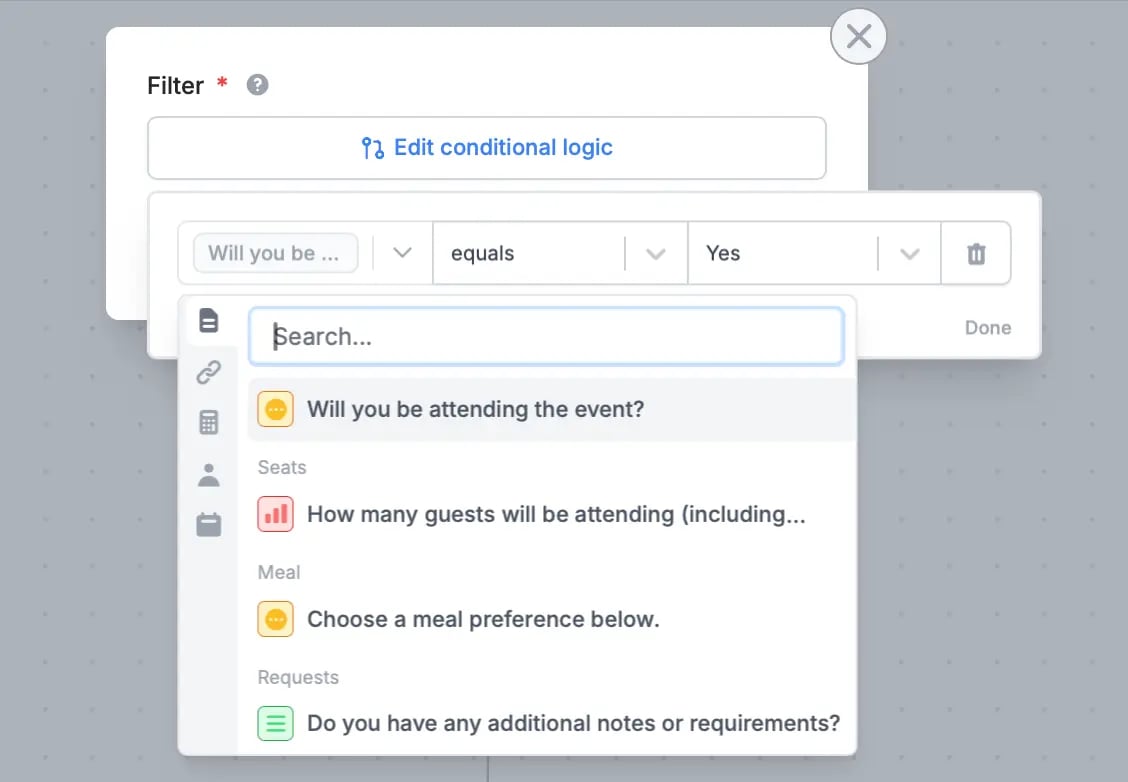
    `Set conditional logic` to`+ Add condition`. Choose a question or field from the left dropdown, an operator from the middle (e.g., equals), and an answer from the right dropdown to trigger the next action.
    <img src="https://mintcdn.com/fillout-005a867b-dependabot-npm-and-yarn-ip-address-10-4-0/oC8iGSEkfx6m7s_0/images/workflows/image-8.png?fit=max&auto=format&n=oC8iGSEkfx6m7s_0&q=85&s=1a818b852e26dc12e849da2d75070d72" alt="Fillout Workflows" style={{ width:"82%" }} width="1128" height="782" data-path="images/workflows/image-8.png" />
  </Step>

  <Step title="Choose your next action">
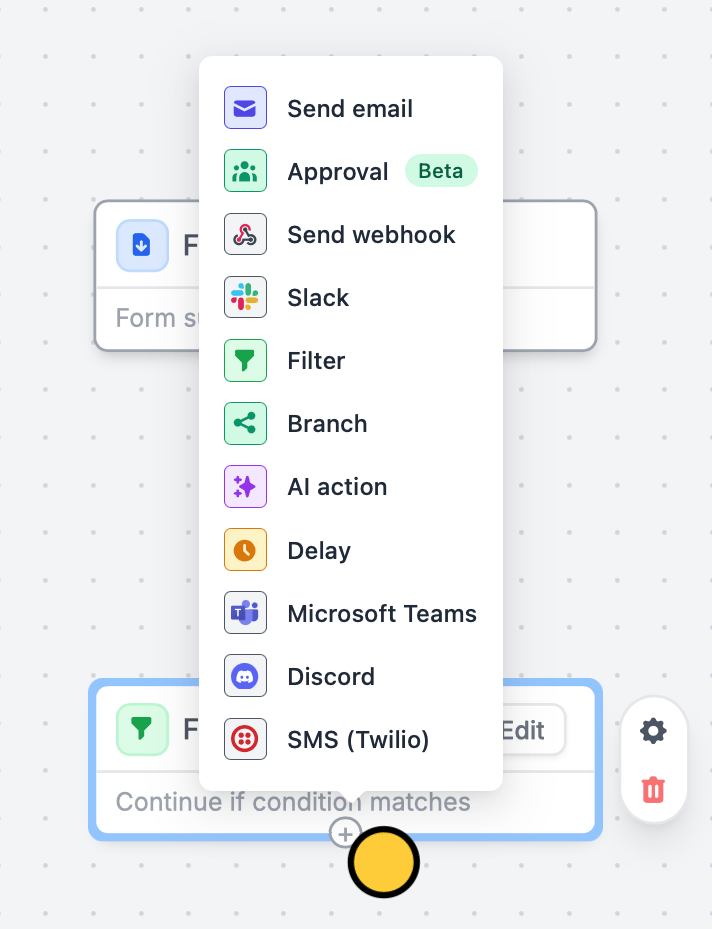
    Choose the next **action** by clicking <Icon icon="circle-plus" iconType="regular" /> under Filter. We'll send a message in `Slack` when a respondent RSVPs "Yes". Remember to `Test` your workflow first.
    <img src="https://mintcdn.com/fillout-005a867b-dependabot-npm-and-yarn-ip-address-10-4-0/w346fh4jx5PwIzfW/images/Screenshot2025-11-03at5.39.05PM.png?fit=max&auto=format&n=w346fh4jx5PwIzfW&q=85&s=de6cf756ff2b153d7eab390f652655e8" alt="Screenshot 2025-11-03 at 5.39.05 PM.png" title="Screenshot 2025-11-03 at 5.39.05 PM.png" style={{ width:"65%" }} width="712" height="929" data-path="images/Screenshot2025-11-03at5.39.05PM.png" />
  </Step>

  <Step title="Publish and share">
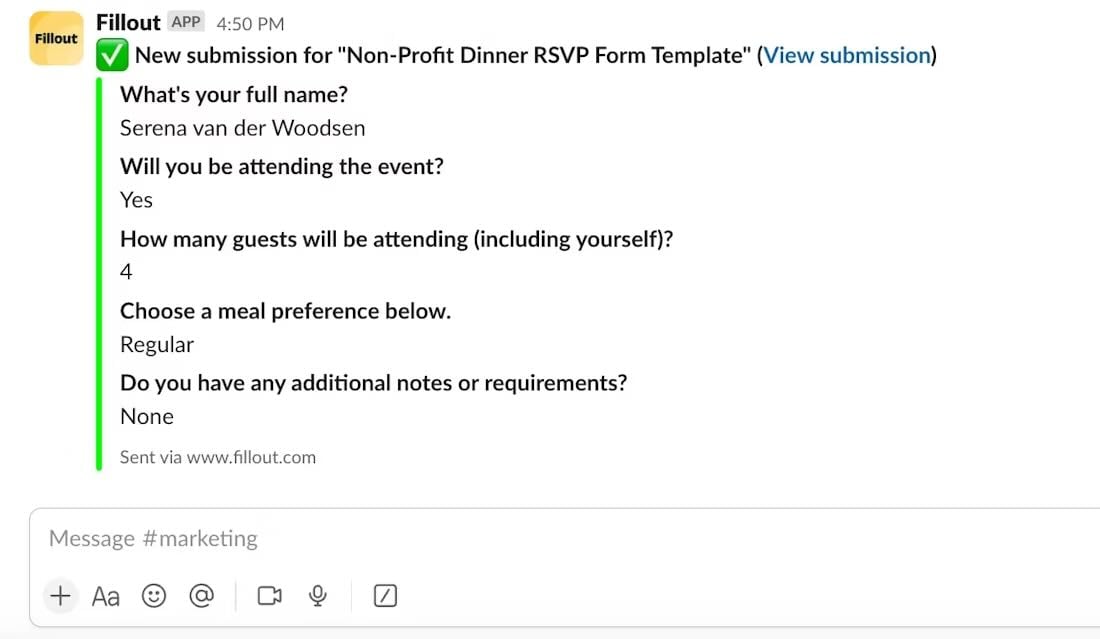
    That’s it! `Publish` and share your form. Now you’ll receive summaries of those who answered "Yes" to your form in your chosen Slack channel.
    <img src="https://mintcdn.com/fillout-005a867b-dependabot-npm-and-yarn-ip-address-10-4-0/pXU8HEFUKu03lyrP/images/image-10copy2.jpg?fit=max&auto=format&n=pXU8HEFUKu03lyrP&q=85&s=3314196149fbdc1e4dce53225bb635ad" alt="image-10 copy 2.jpg" title="image-10 copy 2.jpg" style={{ width:"81%" }} width="1100" height="639" data-path="images/image-10copy2.jpg" />
  </Step>
</Steps>

## Add a branch to your workflow

<Steps>
  <Step title="Choose branch as your action">
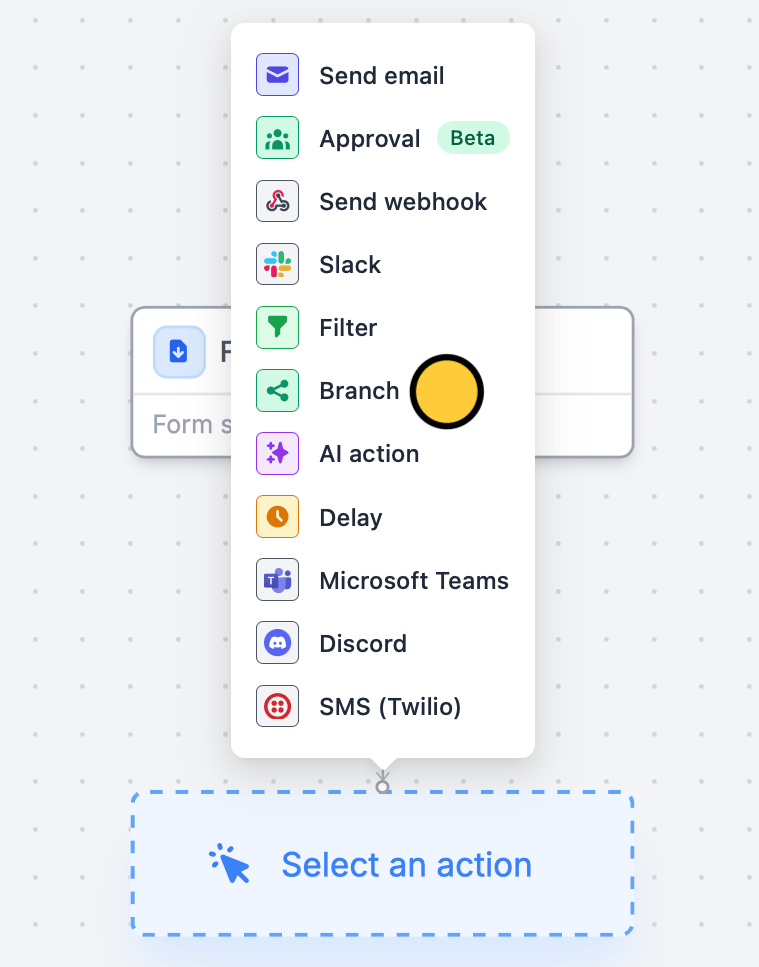
    You can also create different branches based on specific conditions. By adding a branch, you can ensure that the right action happens for each situation.

    After selecting your form **trigger**, add a `Branch`.
    <img src="https://mintcdn.com/fillout-005a867b-dependabot-npm-and-yarn-ip-address-10-4-0/w346fh4jx5PwIzfW/images/Screenshot2025-11-03at5.37.20PM.png?fit=max&auto=format&n=w346fh4jx5PwIzfW&q=85&s=31fb95ca8c93f9a5631ee1ecae7996c7" alt="Screenshot 2025-11-03 at 5.37.20 PM.png" title="Screenshot 2025-11-03 at 5.37.20 PM.png" style={{ width:"61%" }} width="759" height="967" data-path="images/Screenshot2025-11-03at5.37.20PM.png" />
  </Step>

  <Step title="Set your condition">
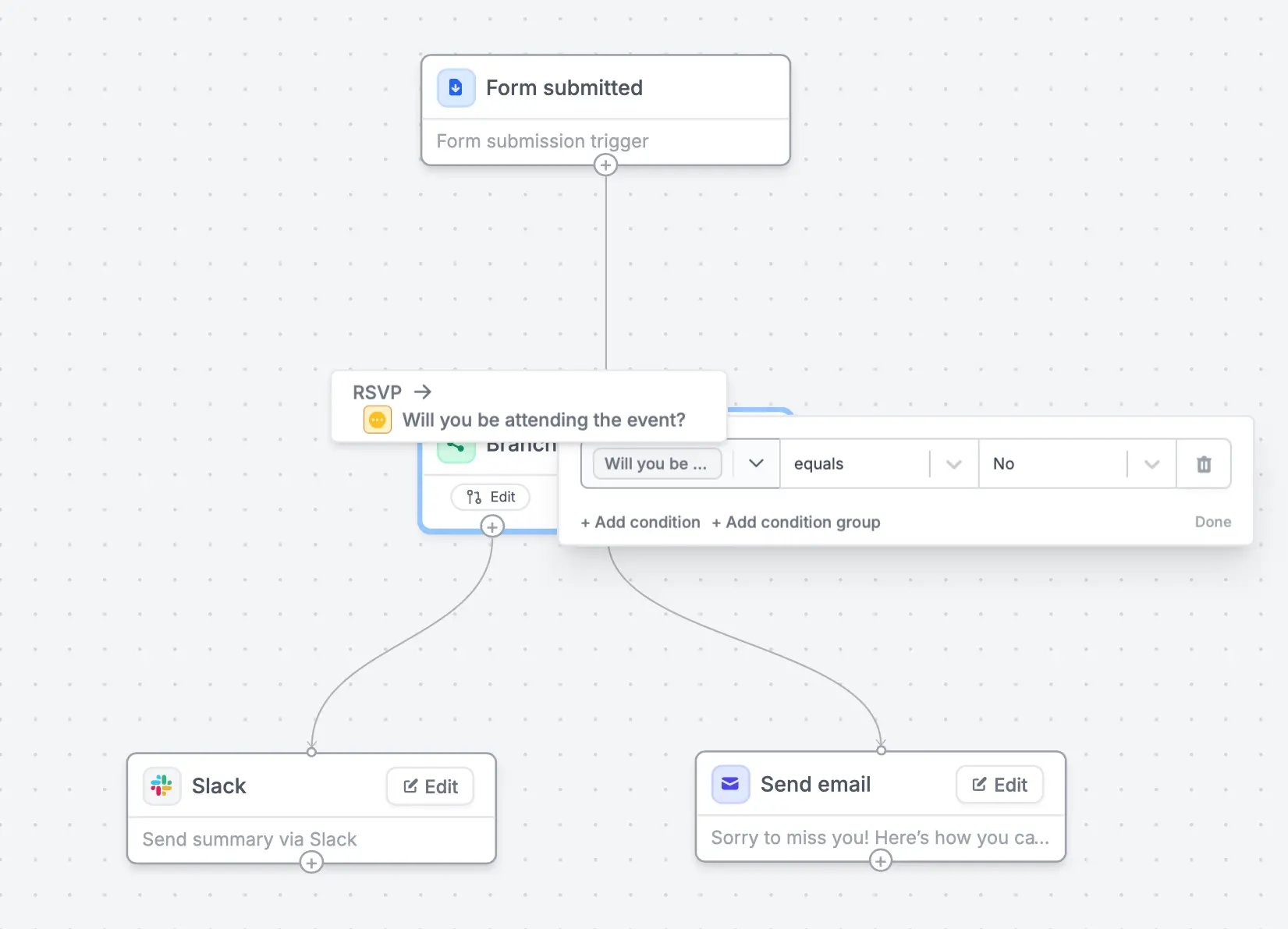
    Click `Edit` to set a condition, followed by <Icon icon="circle-plus" /> to define what happens when the condition is met.

    In our example, we’ll send a summary of the responses to Slack when a respondent RSVPs "Yes", whereas we’ll send them an email with a link to our fundraising page and newsletter when they respond "No".
    <img src="https://mintcdn.com/fillout-005a867b-dependabot-npm-and-yarn-ip-address-10-4-0/oC8iGSEkfx6m7s_0/images/workflows/image-12.png?fit=max&auto=format&n=oC8iGSEkfx6m7s_0&q=85&s=f1905e194083fe225a0d865c13328637" alt="Fillout Workflows" width="1651" height="1191" data-path="images/workflows/image-12.png" />
  </Step>
</Steps>

## Related articles

<CardGroup cols={3}>
  <Card title="Workflows" icon="code-branch" iconType="regular" color="#FFC738" href="/workflows">
    Simplify task flows with native multi-step automations.
  </Card>

  <Card title="Integration logic" icon="gear-complex" iconType="regular" color="#FFC738" href="/conditional-integration">
    Perform an integration only when a certain condition is met.
  </Card>
</CardGroup>

<SupportBanner />
