> ## Documentation Index
> Fetch the complete documentation index at: https://fillout-005a867b-dependabot-npm-and-yarn-ip-address-10-4-0.mintlify.site/llms.txt
> Use this file to discover all available pages before exploring further.
# Use skip logic for questions with multiple answers
> Create dynamic forms that branch to different sections depending on previous answers using logic.
export const SupportBanner = () => {
const titleId = React.useId();
return ;
};
## How to set up skip logic
On your form builder, go to `Logic`. For example, let’s ask respondents which specific services they would like to avail.
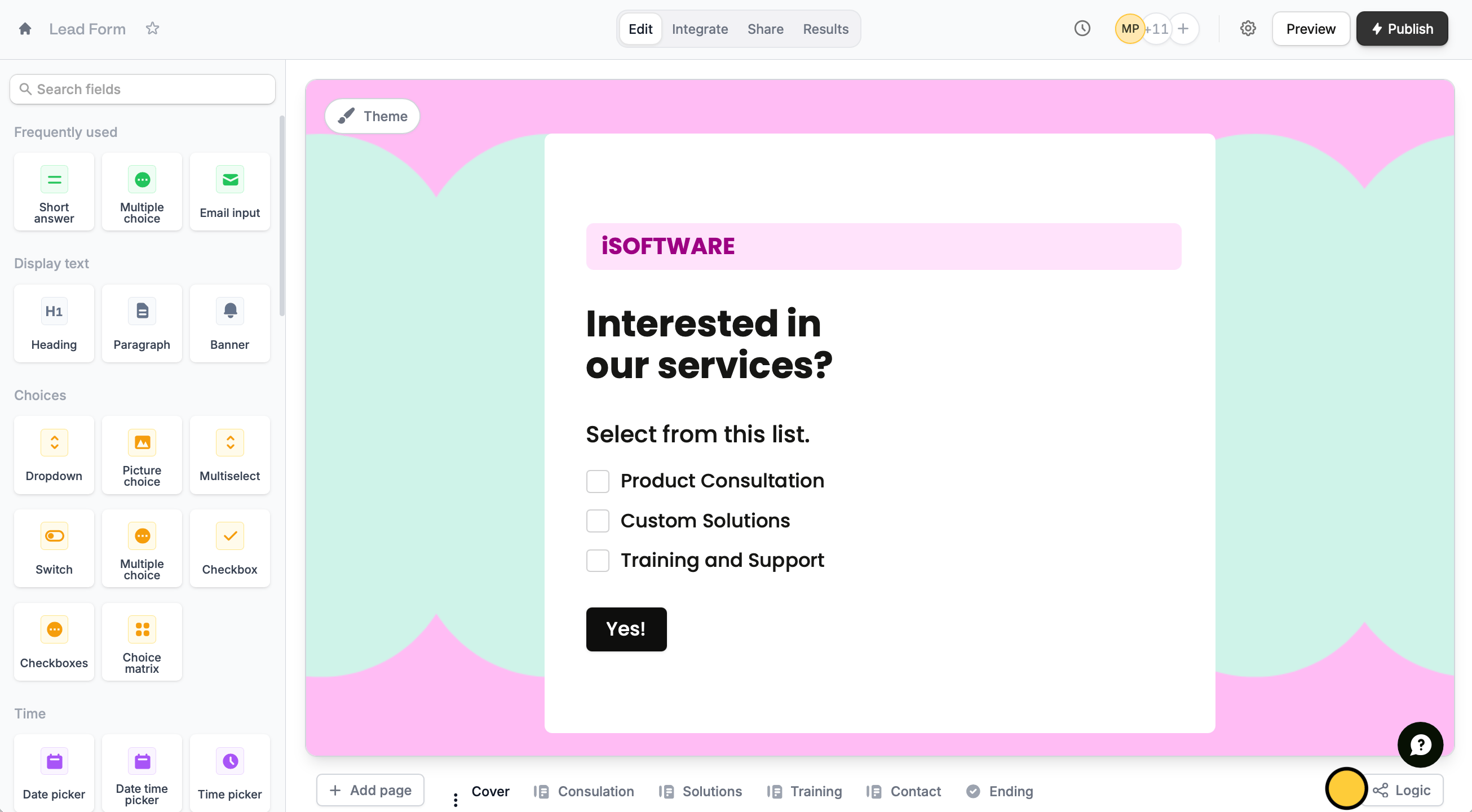 By default, each page connects to a single page, until the **Ending page**. We want to create a dynamic form that will only show pages relevant to previous answers.
First, drag and drop the connector of the page containing the question to the connector of the relevant page.
By default, each page connects to a single page, until the **Ending page**. We want to create a dynamic form that will only show pages relevant to previous answers.
First, drag and drop the connector of the page containing the question to the connector of the relevant page.
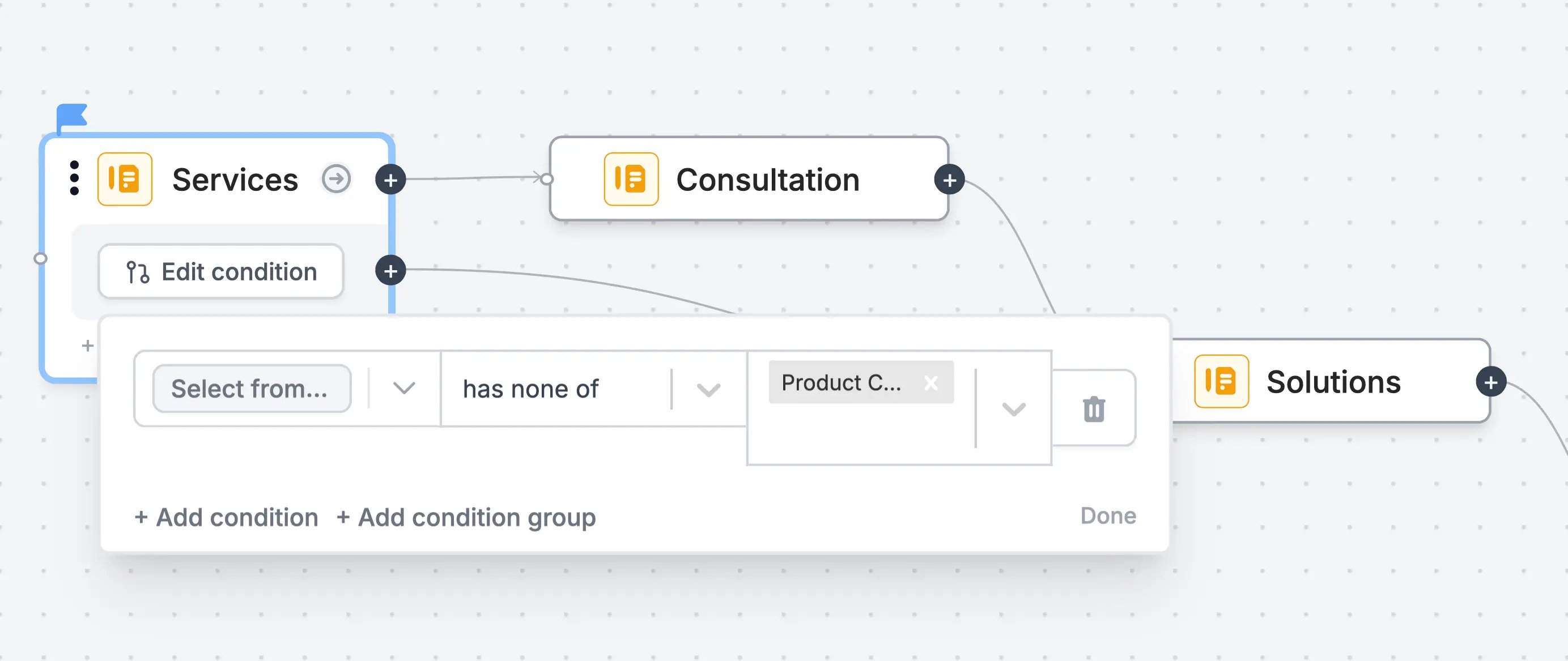
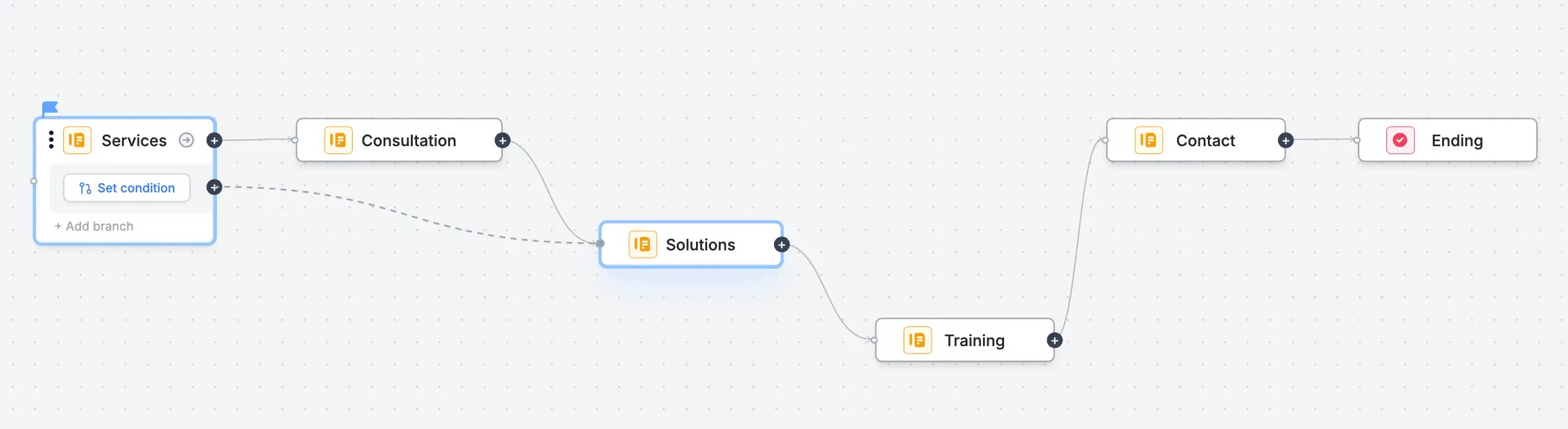 Say, the respondent selects "Solutions" and "Training" only. In this case, we’ll have them skip the page(/s) that come before it, "Consultation".
 Now, let’s make a path for when they select only one option like "Solutions". We’ll add a branch to skip the page(/s) after it, "Training".
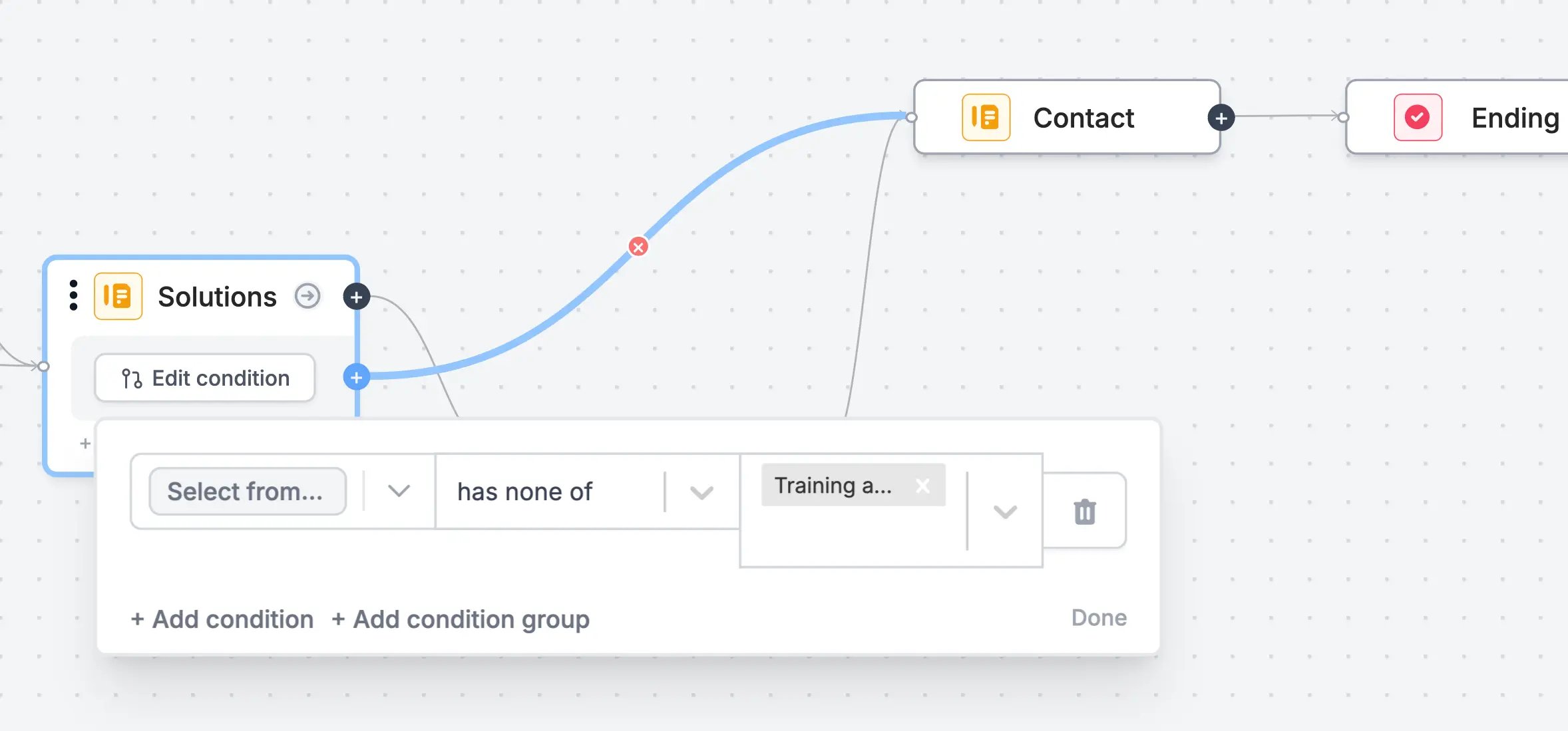 For the remaining options, add branches and repeat the same process. Configure the conditions as you see fit.
## Relevant articles
Hide or show pages or custom endings based on respondent input.
Show or hide fields based on multiple conditions at once.
For the remaining options, add branches and repeat the same process. Configure the conditions as you see fit.
## Relevant articles
Hide or show pages or custom endings based on respondent input.
Show or hide fields based on multiple conditions at once.